Support
Let's get you moving again.
Start with the example, find a common issue, or contact Intelliblitz. Support is best-effort by email.
Email support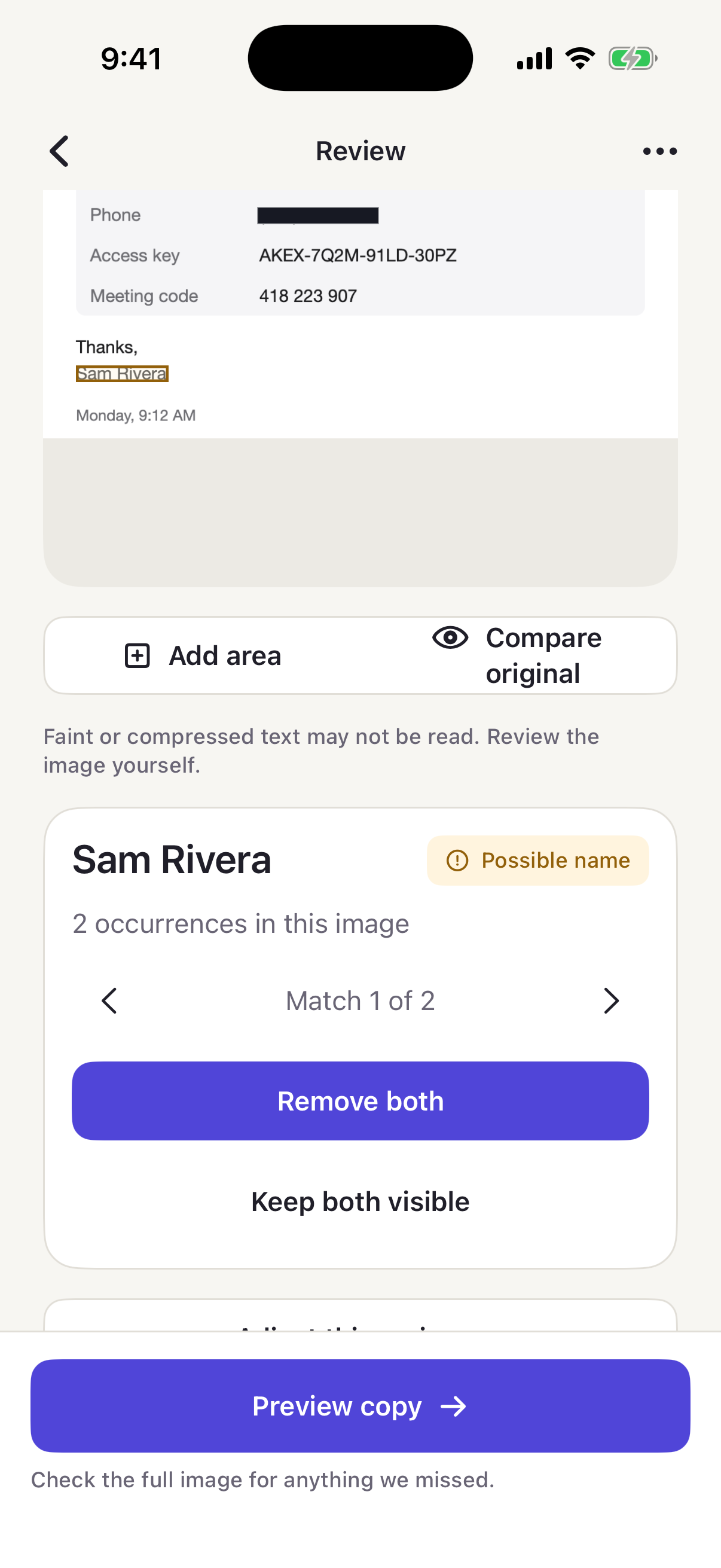
Start with the example.
Try the example in the app. It walks through choosing what to remove, adding an area and inspecting the copy, and it doesn't use a free export. Help in the app also explains the checks, their limits and the available output formats.
Checks and suggestions
- Nothing was suggested.
Review the source yourself and add an area around anything you want to remove. A lack of suggestions does not mean there are no sensitive details.
- Text details says Not checked.
Do not treat the image as checked. Read the reason shown in the app, inspect the source and use manual areas where needed. Very dense images may need a smaller cropped copy for another review.
- The text is too large to open.
Open a shorter part and review it separately. Check the boundaries between excerpts so a detail is not missed where you split the text.
Purchases and exports
- The purchase couldn't be verified.
Reviewing and editing are still available. Try again before exporting a new review. Buying and restoring the unlock require an internet connection and are handled by Apple.
- I already bought the unlock.
Use Restore purchase in the app while signed in to the same App Store account. If the issue remains, contact support with the app version, device type and the message shown. Do not send account credentials.
- I have a question about the free-export count.
A PDF review counts as one export. A batch counts once per image. Failed or cancelled exports don't count, and exporting again from a counted review doesn't use another. The in-app example does not use a free export.
A kept review is temporary.
Keep stores a review in the app for up to 24 hours. It is for returning to unfinished work, not long-term storage. Save the clean copy when you are ready to keep an output file.
Contact support.
Email support@intelliblitz.com with the app version, device type, what you expected and what happened. Use a made-up example rather than a private screenshot, PDF or log. If you prepare support details in the app, inspect them first and choose whether to send them. The app does not send them for you.